WooCommerce already holds the names, emails and order history of everyone who has bought from you. A WooCommerce CRM turns that order list into customer records you can act on. You have two ways to get one, connecting the store to an outside CRM through a sync layer, or running the CRM inside the same WordPress that runs the store. The second removes the sync entirely.
The worked example here is FlyCRM, the WordPress CRM plugin from weDevs, which is free on WordPress.org and keeps its records in the same database as your orders. Our guide to a self-hosted CRM for WordPress covers what holding your own customer data involves.
What WooCommerce already stores, and what it does not
An order is a good record of one transaction, holding the billing name, the email address, a phone number, both addresses, the line items, the total, the date and the status. WooCommerce also has an analytics screen that groups those orders by customer, with an order count and a total spend.
What none of it has is a place for the work between orders. Nowhere to write down the phone call, nowhere to put a dated follow-up, nobody named as responsible for the account, and nowhere for the wholesale inquiry that is not yet an order.
For a store selling one low-priced item to strangers, that may be all you need. The gap costs money once you have repeat buyers worth calling, a customer asking for forty units, or two people answering email who do not know what the other promised.
Two ways to run a WooCommerce CRM
Both routes end with customer records. They differ on where the records sit and what you maintain.
A connector to a cloud CRM
The CRM runs on a vendor’s servers, and a connector plugin copies order data across. You pay for seats in the CRM, and usually for the connector as well.
Two things break, and both break quietly. The first is field mapping. You map billing fields to CRM fields once, then a checkout plugin adds a field or the CRM renames one, and the mapping stops filling something. Nobody notices until a filtered list looks wrong.
The second is orders that arrive while the connection is down, after an expired key or an update that failed halfway. Those orders are safe in WooCommerce, they simply never reached the CRM, and fixing it later means a re-import and a duplicate cleanup.
There is one good reason to take this route anyway. If your team works inside a cloud CRM all day, or you sell through channels the store does not touch, that CRM is your system of record and the store is one input into it.
A CRM inside the same WordPress
The CRM is a plugin, and its records sit in the same database as the orders, so there is no copy to keep in step and no key to renew. An order creating a contact is your site talking to itself.
Pricing works per site rather than per person, so adding the person who answers email does not change what you pay.
What you take on is real. Backups and updates are yours, and a store that is down has a CRM down with it. A store already on managed hosting with daily backups has mostly paid that cost.
| Connector to a cloud CRM | CRM in the same WordPress | |
|---|---|---|
| Where records sit | The vendor’s servers, often in another country | Your own database, on your own hosting |
| What you pay for | CRM seats, usually the connector as well | Per site. The FlyCRM plugin is free, and FlyCRM Pro is a one-time license by number of sites |
| What breaks | Field mapping, and orders that arrive while the connection is down | Nothing to sync. The CRM is down when the site is down |
| If you stop paying | Export the records before the account closes | The records stay in the database |
Per-seat prices move too fast to print here, so count the seats you would genuinely need for a year and price them yourself.
What happens to the orders you already have
This is the first question store owners ask and the one the comparison articles skip. Four years of orders are already in the database. Does the CRM know about them, or only about people who buy from tomorrow?
FlyCRM answers in two parts. Order sync creates contacts from new orders as they arrive, and a separate one-time import brings in the customers who ordered before you installed the plugin. Both are in the free plugin.
Set your order-status rule before you import rather than after, and take a backup first, because an import that writes thousands of records is not something you want to unpick by hand. Then check the result on people you actually recognize, because most stores are carrying guest checkouts with a mistyped email, a customer who ordered under two addresses, and test orders from their first month of trading.
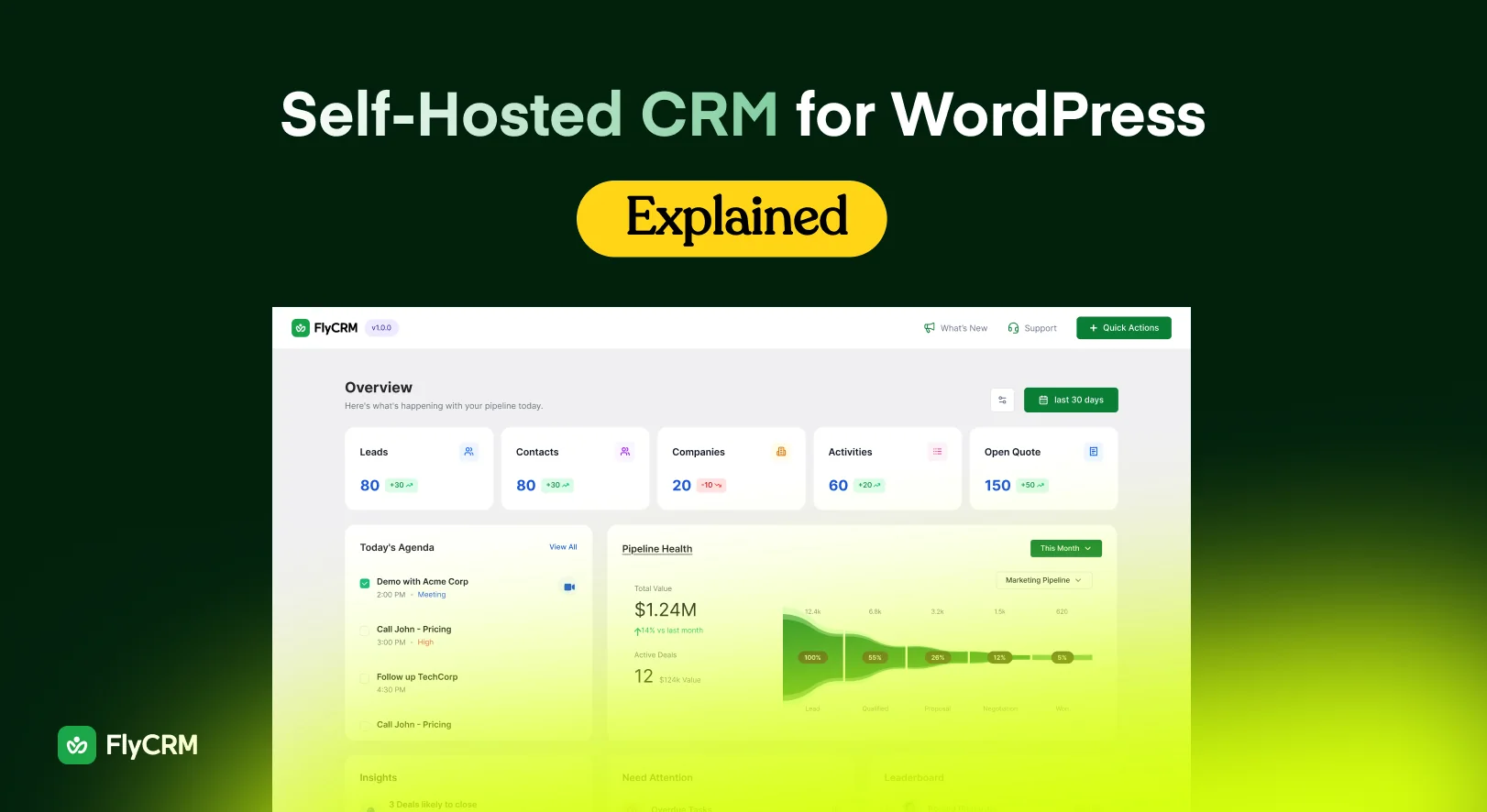
The payoff is that your best customers are visible on the day you install rather than in six months, because the FlyCRM dashboard lists your highest-value contacts and companies.
What a customer record looks like once orders sync
The record is an ordinary FlyCRM contact, the same kind you would keep for anyone else, with the store figures on it. Total order value, how many orders, the average order value, and their last order.
Each order is logged on the contact’s activity timeline, alongside notes, calls, emails, meetings, tasks and files, so the purchases and the conversation read together. The figures belong to the contact, so a returning customer’s orders add to the record you already have.
Average order value is the figure most stores underuse. Two customers with the same total spend, one placing twenty small orders and one placing two large ones, want different things from you.
Choosing which order statuses create a contact
FlyCRM lets you pick which WooCommerce order statuses create a contact, and which contact status and tag a new customer arrives with. It is a two-minute decision that shapes whether the CRM is useful in a year.
The instinct is to take everything. A failed order is usually a card that would not authorize, and a pending one is a checkout somebody walked away from. Both are real people, but a list full of them tells you nothing about who buys.
Processing and completed suit most stores, because both mean money has moved. If you sell on bank transfer or trade terms, add on-hold, since that is a genuine order waiting for payment. Cancelled and refunded are a judgment call.
Set the tag deliberately. Tagging what the sync creates, with something as plain as store customer, tells you six months from now which records came from orders and which you added by hand, and that is close to impossible to reconstruct later.
What to do with the records once you have them
Records on their own do nothing. Give repeat buyers a status or a tag of their own, so the list is one filter away rather than a report you build. Tags work on every record type in FlyCRM, so the same label sits on a contact, a company and a deal.
Put one dated task against each customer who ordered once and never came back, and work through them. Anything FlyCRM emails is logged against the record, so the next person can see what was said.
A wholesale inquiry is not an order. When a customer asks for forty units or a trade price, put it on a pipeline with a value and an expected close date, and send a quote they accept or decline from a link. Invoicing that accepted quote and taking payment online are FlyCRM Pro.
FlyCRM has no email marketing, no newsletters and no marketing automation, and there is no AI in it. Workflow automation in FlyCRM Pro moves records when something changes rather than sending campaigns.
Setting it up on your store
An afternoon, most of it waiting on the import.
- Back up the site, or confirm your host’s most recent backup is where you expect it. You are about to write records into a live store’s database.
- Install FlyCRM from the WordPress plugin directory and activate it. It needs WordPress 6.5 and PHP 7.4 or newer, and sets itself up with a working pipeline, statuses and a starter tag list.
- Open FlyCRM, then Integrations, and switch on WooCommerce.
- Choose the order statuses that create a contact, then set the contact status and tag a new customer gets. Processing and completed are the safe pair.
- Move one recent order into a status you chose and check the contact appears with that order on its timeline. Do this before importing four years of history.
- Run the one-time import for customers who ordered before you installed the plugin, then check ten records you recognize.
- While you are there, switch on your form plugin too, so the contact form feeds the same CRM. FlyCRM works with Contact Form 7, WPForms, Fluent Forms, Ninja Forms and Gravity Forms, and the integrations page covers the feed setup.
What to do next
Install the free plugin, switch on WooCommerce order sync, set your status rule and run the historical import. You will end the afternoon knowing which twenty customers are worth a personal email.
FlyCRM is free on WordPress.org with no cap on how many records you keep. FlyCRM Pro adds invoices, online payment, workflow automation and custom fields as a one-time lifetime license by number of sites, priced on the lifetime deal page. As of September 2026 a launch discount takes 50 percent off that lifetime price, for a limited time.
Frequently asked questions
Does WooCommerce have a built-in CRM?
No. WooCommerce stores orders, and its analytics screen groups them by customer with an order count and a total spend. What it has no place for is the work between orders, so notes, a dated follow-up, an owner for the account, or a wholesale inquiry that is not an order yet.
Will my old orders come across?
Yes. FlyCRM has a one-time import for customers who ordered before you installed it, so you are not starting with only the people who buy from tomorrow. It is in the free plugin. Set your order-status rule and take a backup before you run it.
Does it slow the store down?
No. FlyCRM keeps its own records rather than filling up your posts and pages, and its screens load only inside the FlyCRM area of the admin. Nothing is added to the public side of your site, so your product pages and checkout are unchanged.
Do I need Zapier or a connector?
No. FlyCRM runs in the same WordPress as WooCommerce and keeps its records in the same database, so there is nothing to move between two systems and no middleware to maintain. An order creating a contact happens on your own site.
Can I capture leads from my contact form too?
Yes. FlyCRM works with Contact Form 7, WPForms, Fluent Forms, Ninja Forms and Gravity Forms. Switch your form plugin on under FlyCRM, then Integrations, add a feed for the form, map its fields and pick a lead source. Every submission after that becomes a lead.
Know Which Twenty Customers to Email
WooCommerce records what people bought. It does not record your relationship with them.
Once orders sync into a CRM, a customer stops being a column of order numbers and becomes one record carrying a lifetime value, a purchase count, the full order history and somewhere to put the conversation you had about a return. Choosing which order statuses create a contact is what keeps that list clean, and the historical import means you start with the customers you already have rather than waiting for new ones.
Install the free plugin, switch on order sync, set your status rule and run the import. If you want invoices and online payment in the same place, FlyCRM Pro is a one-time license priced by the number of sites you run.